Showing posts with label free. Show all posts

Sunday, April 1, 2012

Have You Heard of Pinterest?

Greetings,

We hope you are doing well this week.  Today we are excited to share with you one of the fastest growing social media site.  Pinterest is quickly becoming very popular all over the World.

According to Wikipedia "Pinterest is a pinboard-style social photo sharing website that allows users to create and manage theme-based image collections such as events, interests, hobbies and more. Users can browse other pinboards for inspiration, 're-pin' images to their own collections and or 'like' photos. Pinterest's mission is to “connect everyone in the world through the ‘things’ they find interesting"[3] via a global platform of inspiration and idea sharing."

To get you own Pinterest you have to receive an invitation from a member.  You can join for free, and you can view any pin you would like by simply going to www.pinterest.com   If you click on the picture above, it will take you to my Pinterest site.  Explore the site and see if you want to be a part of it.  If you do, send me an e-mail and I will send you an invitation, so you can create you own free Pinterest site.

readmore »»  

Saturday, January 14, 2012

Have You Heard of Digital Flash Cards?


Greetings,

I hope you are doing well.  This week we will be sharing with you digital flash cards.
Digital flash cards are flash cards that children use to test themselves when learning their addition and subtraction facts. 

When you play these new videos, you will notice that the numbers are all color coded, which makes learning fun.  You will also notice that the problem will appear on the screen and give your child 5 seconds to come up with the correct answer.  You also have the option to pause the video in between the problems to allow thinking skills. 

The two videos listed in this blog article are Math Addition - Adding by 2's and Math Subtraction Facts - Subtracting by 16's.  If you want to see more of these videos please visit my site at https://www.youtube.com/user/Complabteacher   We will see you next week with more to share.  Take care!

readmore »»  

Sunday, September 25, 2011

Learning How to Count Video Tutorials


Greetings,

We hope you are doing well.  This week we are blogging about my new counting video tutorials that we have posted on YouTube.  If you look above, you will see a counting exercise you can review with your child.

Listed below is the Which Group Has More video in which we have grouped different shapes and objects. In the video I review how to count and identify which group has more.  This video is for your Pre-Kindergartener or your Kindergartener.


In the Counting Baby Pink Teddy Bears video watch the balancing baby pink bears balance on a ball while we practice counting to 10.  This video is for your child who is learning how to count to 10.


In the Counting with Happy Faces video watch moving happy smiley faces wink their eye at you while practice counting to 10. This video is also for your child who is learning how to count to 10.


If you were unable to play the four videos above, you can visit my web site at www.youtube.com/complabteacher   In the month of October we will be blogging about math tutorials for addition, subtraction, multiplication and more.  We will see you soon.  Take care!
readmore »»  

Sunday, August 7, 2011

How Do You Make A Stop Motion Digital Animation Movie in PowerPoint? Part 2 of 3


Greetings,

We hope you are having a great summer.  This is part 2 of the tutorial.  This is a pretty detailed hand out.  The hand out will review how to set up your PowerPoint background step by step.  It also will review how to set up your Special Effect TitlesTo get the free hand out simply click Here or on the picture above and you can download it as a PDF.

Next week we will finish the final tutorial.  We will review how to add the music to your movie and how to add rolling credits.  We will see you next week.  We hope everyone has a great week before heading back to school in a few weeks.  Take care.
readmore »»  

Sunday, July 10, 2011

Have You Heard of Open Office?


Greetings,

I hope you had a Great Fourth of July Week.  This week I will be sharing with you a free open-source office software suite for Word Processing, Presentations, Spreadsheets, Graphics and Databases and More.  There are a lot of people who are not aware about this free software.

If you click on the picture above, it will take you to the site where you can download this free open sources office software package.  That's right for free!  This is a program that has similar functions as the Microsoft Office 2003 software applications such as (Word, PowerPoint, Excel and Access). 

There are free tutorials on the web site and on YouTube where you can learn how to use all of the free open-source office software programs.  The best thing about this free software is you can use it for any purpose you wish and that includes commercial and educational. 

You can also install it to as many computers as you like.  You can make as many copies and give them away to family, friends, students and employees.  If you are not using the MS Office 2010, 2007 or 2003 software applications, I encourage you to download Open Office. 

You will want to learn, practice, create projects and then teach others how to use it.  I hope you enjoy this free resource.  Don't forget, if you are currently learning how to use PowerPoint 2010, you can check out my free tutorials on YouTube.  Just search for the Complabteacher channel.  I will see you next week.  Take care.
readmore »»  

Sunday, July 3, 2011

The New Who Wants to be a Millionaire PowerPoint Game!

Updated: September, 2011 The New Wants to be a Millionaire PowerPoint Game has been released.  Be one of the first to get it.  We will only offer a limited supply.  Click here for more details.


Greetings,

We want to wish all of you a Happy Fourth of July.  Today I am sharing with you a new exciting project I have been working on over the past few months.   I have been spending many hours and time working on a new Who Wants To Be A Millionaire PowerPoint Game that you all deserve to have.  It will be released in a few weeks, so stay tuned. 

If you are watching the current Who Wants To Be A Millionaire Game Show on TV, it will reflect a similar blue and gold theme.  So stay tuned for this project and you can be one of the first to have it. 

In the mean time, you can download the free version by visiting my second most read blog article as of today.  Simply scroll up to the top and you will see a picture of the thumbnail on the left or you can click on the picture below.


Also, make sure you visit my number one blog article that is getting hundreds of visits on a daily basis.  You will be able to download additional free games.  It is titled Free Power Point Games!  You can click on the picture below and you will be taken to these free resources. 

But wait, before you click on it push the Control Key on your keyboard and hold it down, then press the letter key N and it will open up a new window so you don't close this window out.  You know how you are on a great web site with important information and you don't want to close it out, if you perform the actions above, it will open up a new browser so you can go back and fourth between windows.

Recently, we have been receiving numerous e-mails on how to perform certain activities in PowerPoint. So in a few weeks I will be releasing free YouTube Video Tutorials on PowerPoint 2010.  These tutorials will walk you step by step and hold your hand as you are learning all the new features of PowerPoint 2010.

So I am excited about that project which will be released in a few weeks.  Well I am off to join the family for a Great Fourth Of July Weekend.  We hope you Have a Great Fourth of July Weekend!

Before I go, don't forget to check out my new YouTube channel this week by clicking on the follwing link:  Free YouTube Videos from Mr. Ybarra.  This week I will be featuring more videos that will guide you to different blog articles I wrote last year where you can have access to additional free resources.  Take care.
readmore »»  

Sunday, June 19, 2011

The A to Z of PowerPoint'ing'


Greetings,

I hope you had a great Father's Day.  Today I am blogging about special effect animations you can create using PowerPoint.  If you click on the picture above you can download the free presentation.  Remember all the animations you will see were made in PowerPoint. 

If you look below you can download an activity that will let you build control text boxes.  You are probably asking what are control text boxes?  Have you ever wondered if you could type while a PowerPoint show was playing?  Well control text boxes allows you to do this.

Click on the picture above to download the Control Text Box Activity.  This is an activity in which you can type in the text boxes while the show is running.  For more details on this activity you can view my YouTube Video tutorial by clicking here.  Stay tuned for more exciting blog topics to come.  Take care.

readmore »»  

Sunday, June 12, 2011

Can You Download Great Videos From YouTube?


Greetings,

Can you really download free YouTube videos for your own personal entertainment using free software? I found a free software program you can download that allows you to grab the web site of a YouTube video and paste it into the free YouTube Downloader.

To learn more about this free program simply click on the picture above.  To download this program, click here.  After you have downloaded it, follow these simple instructions on how to save a YouTube video by clicking here.  

The only issue you will encounter is when you install the program.  Make sure you read the instructions carefully and uncheck the items you do not want. Otherwise, you will accidentally download a search toolbar and other unwanted programs.

I hope you enjoy this free program and have fun downloading your YouTube Videos.  I will see you next week with another exciting topic.
readmore »»  

Sunday, April 10, 2011

Great Student Centered Activities (Grades 4 - 5)

Greetings,

I hope you had a great week. I know a lot of the fourth and fifth grade teachers have been waiting for this blog article. In this blog article, I will be sharing with you the free student centered activities for grades 4 - 5.
The Student Center Activities for Grades 4 - 5 include three books and one DVD: The DVD is broken up into 6 parts. Here are the three books:

1. Advance Phonics and Fluency Student Centered Activities
2. Vocabulary and Comprehension Student Centered Activities
3. Teacher Resource Guide

1. Teacher Resource Guide

Part 1: Five Components of Reading Instruction, Frequently asked Questions, Implementing and Managing Student Centers in the Classroom, Interpretation of Activity Plans, Implementation of Activity Plans

Part 2: Crosswalk, 2-3 Glossary of Reading Terms

Book 1: Advanced Phonics and Fluency (8 Page PDF)

A. Advanced Phonics

Part 1: Variant Correspondences (62 Page PDF)

Part 2: Syllable Patterns (48 Page PDF)

Part 3: Morpheme Structures (88 Page PDF)

B. Fluency

Part 1: Word Parts & Words (70 Page PDF)

Part 2: Phrases, Chunked and Connected Text (44 Page PDF)

Book 2: Vocabulary and Comprehension (8 Page PDF)

A. Vocabulary

Part 1: Word Knowledge (60 Page PDF)

Part 2: Morphemic Elements (60 Page PDF)

Part 3: Word Meaning & Analysis (80 Page PDF)

Part 4: Words in Context (48 Page PDF)

B. Comprehension

Part 1: Narrative Text Structure (64 Page PDF)

Part 2: Expository Text Structure (60 Page PDF)

Part 3: Text Analysis (40 Page PDF)

Part 4: Monitoring for Understanding (66 Page PDF)

To download all the resources and to view the DVD parts for FREE, click here.

Ok, I hope you enjoyed all the valuable resources on all the Student Centered Activities you can make and use for interventions with your students.  Remember all these activities have been researched through the Florida Center for Reading Research. 

For more information or to view their Mission Statement, simply click on the blue link above this sentence.  I will see you next week with another exciting topic.  Take care.
readmore »»  

Sunday, January 23, 2011

What is BrainPOP Español?


Greetings,

Today I will be blogging about the Spanish version of BrainPOP.  BrainPOP has become so popular, they now have a Spanish site.  That's right Spanish videos!  BrainPOP also has gone international with the following: BrainPOP UK,  BrainPOP Latinoamérica and BrainPOP Français

So if you are an international speaker, go ahead and click on the blue links above, and it will take you to their international sites.  They also feature free videos as well.  If you click the picture above, it will take you to their Spanish site.

Listed below is their help menu in Spanish.  You will see the various help topics that will assist you in working around the Spanish site.  Simply click the picture below and it will take you to their help site.


I hope you enjoyed all the BrainPOP tutorials.  The one thing I really enjoy about BrainPOP, is that they keep adding more videos to their sites.  I have a feeling they are working on a BrainPOP Jr in Spanish.  Well, we will just have to wait and see.  Take care and see you next week.

readmore »»  

Sunday, January 9, 2011

What is BrainPOP Jr.?


Greetings,

Hope you are doing all well.  I know you have all been waiting for this topic.  So let's get started.  BrainPOP Jr. is a web site similar to BrainPOP, except it is related to grades K - 3. 

The exciting thing about BrainPOP Jr. is every week they are continuing to add more animated videos.  If you look at the picture above, this is what you will see when you go to http://www.brainpopjr.com/.  Simply click on the picture above, and it will take you to there.

BrainPOP Jr. also has free videos you can preview.  Each video is on average 4 - 8 minutes long. If you look at the picture below, this is what the interface looks like when you click on the free video Science Projects.  I have labeled the video controls underneath the video screen.  Click on the picture below, and it will take you to the video.

As you can see in the picture above they have games, activities, jokes, vocabulary word walls, quizzes, drawing activities, writing samples, and more.  They also have close captioning which means the words will appear on the screen as the video plays.  You can even print a personal notebook on the video you are playing. 

Here is a list of science units that BrainPOP Jr. has to offer.  Click on the picture below and it will take you to the particular page on the BrainPOP Jr. site.   If you scroll down on that page you will see a list of the videos for science.  When you get to the web site, scroll down and click on the pictures that have a FREE Tag in the upper left hand corner and you can play the video.

To subscribe to BrainPOP Jr. click here.  Hope you enjoyed the article on BrainPOP Jr.  Next week I will be sharing with you BrainPOP ESL.  We will see you next week.
readmore »»  

Sunday, November 28, 2010

What is Google Docs?

Greetings,

Hope you had a great Thanksgiving Holiday this past week.  Today I am blogging about Google Docs.  According to Wikipedia, Google Docs has been around for since 2005, but was made available to the public in 2007.  If you are not using google docs, you are probably curious about all the buzz on this free application.

This application allows you to create ,edit and share documents, spreadsheets, presentations, forms, surveys and drawings.  It works with Microsoft Office products without requiring the user to have the program loaded onto their computer.  You can also upload your own documents to store online. 

The best way to tell you about this application is through videos.  Listed below are a collection of links that will educate you more on how you can use this application.  The 4 links below will show you videos from Youtube.  If you are unable to view these videos from your school.  You can always check them out at home.

1. Google Docs in Plain English (3 minute video) - If blocked, click here.


2. Teachers and Principals talk about Google Docs (4 minute video) - If blocked, click here.

3. Google Docs: A Love Letter (2 minute video) - If blocked, click here.


4. Learn More About Google Docs (step by step video tutorials)

To get started with this application, you can try it for free by visiting: http://www.docs.google.com/demo/ 
To start using Google Docs visit: http://www.docs.google.com/

Hope you enjoy the videos and tutorials above.  Remember, you want to spend time playing with the different applications that google docs has to offer.  I will see you next week with another topic.  Take care.
readmore »»  

Sunday, October 17, 2010

Free Quick References for You

Greetings
Today I will be sharing with you a web site where you can get access to quick references on various software programs for free. Once you download the quick reference guides, you can print the two pages out as a colorful pdf document. You can also glue them back to back and laminate them. You now have a quick reference guide for all the Microsoft Office and Adobe software titles listed above.

All you have to do is go to http://www.customguide.com/ and click on the Product Tour tab. Look on the right hand side of the screen and fill out the following information below to access the free quick reference guides.
These quick reference guides can assist you in your training needs. Hope you enjoy these free guides. We will see you next week with another exciting topic. Take care.


readmore »»  

Sunday, October 10, 2010

What is Storyline Online?


Greetings
Storyline online is a great web site that has Hollywood stars read to you. You will find the following stars reading to you: Betty White, James Earl James, Tia & Tamera Mowry, Amanda Bynes, Sean Astin, Al Gore, Esai Morales, Hector Elizondo, Lou Diamond Phillips, Elijah Wood, Jason Alexander, Haylie Duff, Amber Rose Tamblyn and Camryn Manheim. This web site keeps growing. As of today, they have 23 stories all read by the Hollywood stars above. Storyline online is funded through The Screen Actors Guild Foundation.

The books that are read by the stars have related activity questions, ideas and concepts to help your child learn even more. You can also download activities guide that have the story and ideas in a pdf format. They also have a newsletter you can subscribe to where you can get updated information on their web site. You can also purchase the book for a nominal fee. All stories read, last between 5 – 10 minutes. You and your child will enjoy this free web site to improve your child’s reading skills.

When you decide to let the video play, it will stream the video at speeds of 56K for dial up, small; 150K for broadband, medium; 300K broadband, large and 512K broadband, best quality. When the video plays, you can also choose the option to show the captions. The captions allow you to see the words and sentences being read to you. You can also pause it, rewind, fast forward it to your favorite part of the story.
You will also notice as the person reads it to you via video you will see pictures that zoom in and out from the book. This unique video concept will make it a memorable experience. Try it out today at http://www.storylineonline.net/ Hope you enjoy the site. I will see you next week about another exciting topic in technology.
readmore »»  

Sunday, September 26, 2010

Teaching with Claymation: Part 3 of 3

Hello

Today I will be discussing animation tips when working with claymation. One of the most important tips I can tell you is to be careful with your background and remember to keep it simple. Here are 10 animation tips.

1. You can simply use construction paper and different color cut outs as well as clay to make scenic items such as clouds, rain, flowers, trees, etc.

2. When you are planning your claymation video, you may want to shoot the scenes backwards with your digital camera.

3. Take 8 - 15 frames per second of finished video (approximately 450 pictures = 30 seconds of video!)

4. Move your character in small amounts at a time.

5. Have handy some wet wipes to keep your hands clean.

6. Avoid moving items in the scene that are not suppose to move.

7. Change the camera view or zoom occasionally.

8. Make sure you set your camera on a tripod and use fresh batteries.

9 Your digital camera needs to be cleared of all pictures before you start taking pictures.

10. Make sure your students have all their materials and supplies before taking the pictures.

Here are 7 video tips you want to be aware of.

1. Take out any pictures where you can see hands.

2. Add background music, sounds and voices. It can be very challenging to use voices to lip movements in stop motion animation; voice-overs are much easier.

3. When adding music use free sources for educators like http://www.freeplaymusic.com/

4. When filming, set the camera on a tripod close to the background. Make sure the background is in the frame.

5. Once filming begins, make sure the camera does not move.

6. Take many pictures. You can always delete excess pictures later.

7. Move characters approximately 1/4 of an inch between shots.

Check out these examples.
Mario's Pizzaria.


Stop, Drop, and Roll!


The Butterfly Cycle


Transformations

After you have all your pictures, audio, and sound bytes, create one folder on your desktop and place all the items in it. To produce your move you want to use a free movie editing program on your computer called Movie Maker 2.
To find Movie Maker on your computer go to "Start" and the program is either in the accessories folder or in your programs file. Look for the little color film real with a tailing filmstrip icon. You want to be familiar with this program. For a free video tutorial please visit: www.atomiclearning.com/moviemaker2 To put the finishing touches on the movie you will add titles, credits, narration and music in Movie Maker 2.
Free Resources
Royalty Free Music Sites
http://www.partnersinrhyme.com/
www.beatmode.com/free-loops/
www.mfwp101.com/freemusic.htm
www.flashkit.com/loops/
www.hooverwebdesign.com/sounds/index.html
http://www.freeplaymusic.com/
Sound Effects
www.pacdv.com/sounds/index.html
Hope you enjoyed the 3 part series on claymation. We will see you next week with another exciting topic in technology. Take care.
readmore »»  

Sunday, September 19, 2010

Teaching with Claymation: Part 2 of 3

Greetings,

Today I will be discussing how to build characters and props. I will also talk about how to build your backdrop or background. Let's get started, you will need the following items to build your characters.

* Armature for the Skeleton, which will provide strength and flexibility.


* To create the bulk and shape of the character you will need to cover the wire with foil folded into strips. You can also use styrofoam as well.
* Colored nonhardening modeling clay
* You also might want to visit an art and craft store to get plastic eyes, mouths and noses for your character.

To mold the clay on your character you can use your fingers ore plastic spoons to shape the clay. If parts of the character will move, it may be easier to make two or more clay pieces of that part such as a winking eye or moving mouth. You can also use the clay to build props like clouds, lakes, rivers, trees, etc. on to colored construction paper for your backdrop or background. You can also use sand, grass, dirt, rocks, twigs, marbles and confetti etc.
After you have all the supplies you are ready to set your stage.
1. When students are working with claymation there should be no more than 4 to a group.
2. Students will need to create a flowmap of step by step of the movement of the story.
3. Make the characters.
4. Make the backdrops or background - The backdrops can be done in a shoebox, shad.ow box, on a chair, in a cubby hole, base of a chair, on colored construction paper or poster board (Remember to keep it simple).
5. Work on lighting - Do you want the characters to stand out more?
6. Think about the camera view, taking the photos and making the movie.
Next week I will be discussing animation tips, video tips, filming tips, producing the movie, adjusting timing, adding titles, credits, narration and music. I will be sharing free tutorials and additional web sites for more ideas. I will also be posting more examples of claymation projects. See you next week.
readmore »»  

Sunday, August 8, 2010

How to Access Free Movies, Music, Books and Audiobooks!

Greetings,

Hope you are doing well. This week I will be discussing a place where you can access free resources within your community. You can get popular DVDs, Cd's, books, and audiobooks at your own local library. It's amazing of the statistics of how many people actually have a library card, it is about 2 - 5% of the population. That's maybe one one out of twenty individuals who have in possession a free library card.

All you have to do is visit your local public library, and search for the resource you are looking for. Once you find your resource then you will need to sign up for a free library card. You can even do a search online in some cases. If they do not have the resource you are looking for, then you can place a request for them to get it through interlibrary loan. They search hundreds of libraries for you throughout the country.

I have received resources from as far as New York, Chicago and Los Angeles to name a few. You may have to wait a few days or weeks. Some of the movies I borrowed recently include the following: Avatar, Julia and Julia, Wall-E, The Power of One from the 1990's, The Karate Kid part 2 and 3 back from the 1980's. A few books and audiobooks I have checked out include books by John Maxwell, John Wooden, Stephen Covey and Eric Jensen to name a few.

Hope this helps you out as you look for the resources you want or need in the future. As summer comes to a close, millions of children will be returning to a new school year within the next month. Over the next two weeks I will be blogging about how to be an effective classroom manager. I will also be sharing with you a few slides of my First Day of School PowerPoint. This is the same PowerPoint that was recently featured in a Presentation by Dr. Harry K. Wong. Hope to see you soon.
readmore »»  

Sunday, August 1, 2010

How to Get a Free E-mail Account

Greetings,

This week I am blogging about how to get a free e-mail account. There are a lot of teachers and people who do not know that they can get an email account for free. I personally use http://www.mail.yahoo.com/ http://www.gmail.com/ and http://www.hotmail.com/ accounts. The reason you want a free e-mail account is you can send pictures, audios, videos and interesting web sites to all your family and friends. Remember it's all for free. You can also choose your own e-mail screen name.

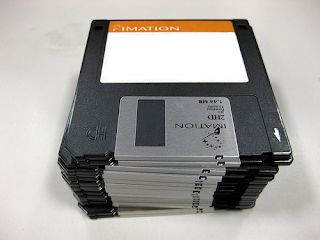
I like googles email account (Gmail) because you can send an attachment up to 25MB in size. Do you remember about 10 -20 years ago when we use to use save documents on plastic 3.5 inch floppy disks?
25MB is equal to almost 18 3.5 inch floppy disks. It's amazing how far technology has advanced.
Another reason I like using yahoo.com is because yahoo has an instant messenger (IM). With the instant messenger download application you can chat in real time with family and friends that have the same yahoo instant messenger. You can also use it with your web camera and see the other person in real time while chatting with them. I hear you can use http://www.skype.com/ to do the same thing.

Try these free e-mail accounts and let me know which ones you like best. Next week I will be blogging about how to access free books audio books, music Cd's, DVDs and more. See you next week.
readmore »»  

Sunday, July 25, 2010

How to Search Google?

Greetings,

Hope you are doing well today. I will be blogging about how to do a Google search for documents, pictures, and videos. When you go to http://www.google.com/ you need to type in the search box you topic of interest, and then you type the following file extension in quotes:

1. For MS PowerPoint Documents you type “ppt

2. For MS Word Documents you type “doc”

3. For MS Excel Documents you type “xls

4. For Adobe PDF Documents you type “pdf

5. For Flash Videos you type “swf

6. For a specific phrase you need to type it all in quotes

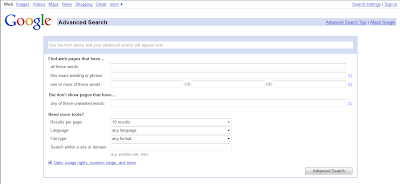
If you want more options, then click on the right side of the box under Advance Search. Next, you will see the following options under Advance Search.


Then you can follow the instructions in the search boxes. If you go to the last topic on Need more tools, you can pull down the drop down arrow boxes to get more options on your search. You can even narrow down the file search to a particular type of file.


For example, let’s say you are looking for an interactive flash web site when teaching a concept or objective; all you have to do is pull down the drop down box and choose Shockwave Flash. Once you chose this option, then all you will find are flash video sites. Try it out with the water cycle. If you want more search options, please visit the following: Advanced Search Tips

To look for pictures you need to go to http://www.google.com/ and hover your mouse on the top left side of the screen, and you will see a blue Images link. Click on the link, and then type the name of picture you are searching for in the search box. You will do the same for Videos. Hope these helpful tips help you out. I will see you next week with another topic.
readmore »»  

Sunday, July 18, 2010

What is the Hat?

Greetings,

Today, I will be blogging about the Hat. The Hat is a random number/name generator you can use with your students. This application makes sure each person is randomly drawn equally. What's neat about this application is once you download it, you do not need to be connected to the internet.

One of the great features of this application are the fun special effects. The generator will make a toggle noise and a drum beat noise as the names are being shuffled and selected. This tool has given me another option to use, besides my traditional popsicle sticks in a cup. The popsicle sticks in a cup still works, except this generator has sound effects and is very visual. This makes it more exciting for the students.

To download this free and fun tool you can visit the following web site: http://www.harmonyhollow.net/hat.shtml
Here is what it looks like after you have downloaded it.

The fist thing you want to do is input the students names manually.


Once you select the Add Names Manually button, you will see the following window screen. You will need to type in your students name to add them to your list.

After you have all the names of your students in your class. You have two choices.

1. You can shuffle the names and the names will jump around from top to bottom to different position. You can either chose the name on the very top of the list or the bottom of the list. Then you can chose to delete the name.

2. You can chose to draw the names randomly out of the Magic Hat. The student will see his or her name appear on the middle part of the hat.

I personally like using the Magic Hat, that way the students are selected randomly to answer questions when I am presenting a lesson to the students. The names can only be chosen one time, so it is a true random sample.


Once you have drawn all the names of the students, you will see an indicator that says all the names have been drawn out. Then you can reshuffle, and continue to draw out the same names randomly.


If you have more classes you can chose to delete the names, clear the list or import the names into the generator.


You can also go into the options setting and change the interface or sound effects if you would like.


I hope you enjoy this fun and useful tool. I know your students will enjoy it. Remember download it and play with it, and you will be ready for your students when you need to ask questions to your students randomly. Hope his helps you out. See you next week.

readmore »»