Showing posts with label add pictures. Show all posts

Sunday, August 7, 2011

How Do You Make A Stop Motion Digital Animation Movie in PowerPoint? Part 2 of 3


Greetings,

We hope you are having a great summer.  This is part 2 of the tutorial.  This is a pretty detailed hand out.  The hand out will review how to set up your PowerPoint background step by step.  It also will review how to set up your Special Effect TitlesTo get the free hand out simply click Here or on the picture above and you can download it as a PDF.

Next week we will finish the final tutorial.  We will review how to add the music to your movie and how to add rolling credits.  We will see you next week.  We hope everyone has a great week before heading back to school in a few weeks.  Take care.
readmore »»  

Sunday, July 17, 2011

What is Cloud Computing?

Greetings,

I hope you are having a Great Summer!  I know it has been pretty Hot over here in the Dallas/Fort Worth Metroplex.  Today I will be sharing with you a new term that is becoming very popular in mainstream.  In fact on Yahoo, this term Cloud Computing was featured the second most popular topic last week. 

If you look at the diagram up above, you can see that as a society we are bombarded with technology from tablets, laptops, desk tops and smart phones.  What if we could have one central location online to store all of our files? Well there is a solution and it is called a cloud.  In a cloud we can store all types of files and access them from our many digital devices. 

You can now access your files from anywhere and from any computer on the internet by using a cloud. Online file storage has been around for many years and is now becoming available to the average person.  You will be hearing more informaton on cloud computing in the future.

Clouds are becoming easy to use and people are starting to upload their files to them. One of the Great features about clouds, is they allow you to share these files with your friends and colleagues.  Clouds also allow you to keep your files safe and secure. 

If you want to get your own cloud, one of the best recommended sites you want to try is dropbox.  This site allows you to hold up to 2GB of memory in their cloud.  You can register with them and get more space if you want for a nominal fee.  Simply click on the picture below to get started sharing your files in a cloud.


We hope you enjoyed this blog article.  We will see you next week with another new and exciting topic.  If you want to learn more technical details about cloud computing, you can click Here. Take care.
readmore »»  

Saturday, March 12, 2011

How to Create and Produce an Amimoto Video: Part 3 of 4

Greetings,

Hope you are having a great Spring Break.  Today I will be sharing with you the video I created in animoto.  I will also be sharing with you the various steps in creating the video.  So let's get started.  When going through this tutorial I would recommend pulling up this blog article side by side on your computer screen as you follow the various steps.  You can also print it out and follow along if you choose to.

The first thing you want to do is pick a video style.  The video style will add a theme to your slides and will have an impact on the movement of your slides.  You can also preview your slides to see the various themes that will be in your video.


After you have selected your theme, you will need to upload or add pictures or videos you want to put into your movie.  You will need to select Upload to add your pictures to your project from your computer.


In the picture below you will see the pictures I selected to use in my video.  Once the pictures are ready you will have several options to select from.  You will be able to Add More Pictures, Add Text, Spotlight, Rotate the Pictures, Duplicate, Delete and Shuffle the Pictures.  After you are satisfied with your choices, click on the Done button.


If you choose not to use your pictures on your computer, animoto gives you the option to use their pictures and videos in your video.  Listed below are the various themed pictures that animoto will allow you to use in your video.


Here are the video themes you can add to your video if you wish.


You can even choose to add pictures form a photo hosting web site from the following accounts listed below.


Once you have assembled the pictures the way you want them and the order you want them to play, you will go to Step 2: Music.  Listed below you will see the second option with the plus sign and it is the Upload button.  This feature will allow you to add your own music from your own computer.  Animoto also has a range of music to choose from, if you want to use their music.


Listed below are the different types of genres of music you can choose from to add to your video.


After you have added the music you want, then you can move to Step 3: Customize your video.  You will be given the choice of Image Pacing, Video Length, Video Style and various other Options.  After you have selected your preferences, simply click on the blue Continue button.


Now you are ready to add your title to your video and description.  There is also a place to put your name as the Producer.  How cool is that?  When you are done with filling in this information, you are ready to create your video. Just click on Continue.


Now you will see the animoto production screen.  This process will go through the following stages: Processing, Composing and finally Producing.  For a 30 second vide, it may take anywhere from 3 - 5 minutes to go through the three stages of video production.  Remember the various stages are all done on the computer and automatically.

When your video is finally finished, you will see a screen like the one below.  You will have the option to re-mix up the images again to produce another movie if you wish.  You can also download it to your computer or share it using Facebook, Twitter, Youtube or even email it to all your family and friends. 


If you click on the My Videos tab on the top of the screen it will take you to where all your videos are stored.  You will also see Untitled Projects, these are projects that were not completed.  If you click on the Edit Project button you will be given several choices such as Edit, Create New Video, Rename and Delete.  If you chose to click on Delete, you will not be able to get the video or project back.


If I move the mouse over the light blue are under the title of my Video "Majestic Places of the World", it will show the following details about the video:

1. Length of the Video
2. The type of Style
3. The Description of the Video
4. The Number of Views
5. The Music you selected.


Here is my final 30 second video that I created with my pictures and the music I selected. Click on the play button to see it.

I hope you enjoyed the detailed tutorials with screen shots.  Next week I will be sharing with you Part 4: How to Promote your Video.  See you next week.  
readmore »»  

Sunday, March 6, 2011

How to Sign up for a Free Animoto Account: Part 2 of 4

Greetings,

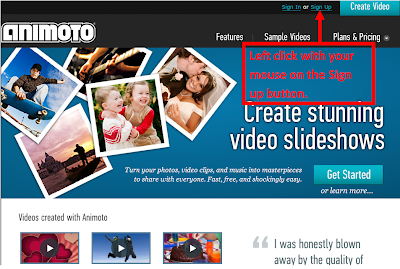
I hope you had a great weekend.  Today I am continuing my blog on Animoto on how to sign up for a free account.  To sign up for a free account simply go to http://www.animoto.com/  When you get to the web site you will see the following down below.  Follow the instructions in the red box.


Once you click on the blue Sign Up button it will take you to the following page below.


Simply choose the Free one on the far left hand side.  It is called the lite.  Once you click on the Try Now button it will take you to the following page below and you will need to fill out the information to register for a free account.


Once you complete the information, click on the blue Sign Up button and you will be able to log into Animoto.  You will also get a welcome email from Animoto giving your additional instructions on how to use the program.  You may want to review the terms of service and the privacy policy, but this is standard procedure.

Next week I will be discussing Part 3: How to Create a Video.  I hope you have a great week.  I will see you next week.  Take care.
readmore »»  

Sunday, November 7, 2010

Creating Your Own Blog

Greetings,

Today I will be sharing with you how to create your own blog.  That's right you can publish your own material.  How many times have you attended a great training and you wanted to share the handouts or resources from the training with other teachers?  Well here is how you can do it.  To get started you can download my free training tutorial: How to Create Your Own Blog - Tutorial.  Simply click on the blue link above and chose save as.  You will want to save it to your desktop. The tutorial will review the following key concepts and ideas:

1. Learn how to create a blog by following the detailed pictures in the tutorial. 


2. Learn how to edit, proofread, add links, pictures and videos to your new blog.


3. Learn free tips, hints, tutorials and great resources to use in the classroom.


4. Includes step by step screen shot pictures of how to create a blog.


Hope you enjoy the free resource and keep me posted on how your blog is going.  See you next week. 

This hand out is being edited, and revised to reflect current changes in blogger and soon will be posted.
readmore »»  

Sunday, January 10, 2010

How to Take Pictures of Your Computer Screen Using MS Office 2007

Hello fellow Colleagues,


Today I am blogging about a screen shot picture (a picture of your screen). Did you know that you can take pictures of your screen? Then you can crop (cut out the image you want out of the picture) and edit the picture and then you can put it in a Power Point or a word document.

This feature is the best kept secret for screen shot companies and they do not want you to know this. All it takes is one button and that one button is called the Print Screen button. It is located on your keyboard, right above the insert button. This button is also on the right side of the F12 button and left of the Scroll Lock button.

All you have to do is push the Print Scrn button. That's it, it is that easy. Then you open up MS Word or Power Point and you right click with your mouse and select the paste button and it will paste the screenshot in your document. To crop the picture you will need to double click on the screenshot with the left side of the mouse. Then you will left click on the crop feature button it looks like this picture. It is located on the right side of the ribbon. Once you have clicked on the button it will create lines around your picture in which you can left click to control how much you want to cut or edit out of the picture. Then you will look for the text wrapping button on the ribbon. It is usually a picture of a little Dog with horizontal lines around it. Next, left click on the text wrapping button and chose the Tight option. After you have done these steps you can now move it anwhere you would like it in your document. If you want to make the picture smaller or larger just left click on the picture and left click on the little circles around the picture and move the mouse. You can also copy and paste it into another document if you want.

Once you get the hang of taking screenshots you will be taking many screenshots of your screen. If you are looking for more information on this feature go to google and type "print screen in MS Word 2003 or 2007" Please keep in mind that these instructions are for MS Office 2007 version only. I hope to publish the MS Office 2003 version next week. Now, if you do not have MS Office 2007 I have posted a link where you can get it. Stay tuned and we will see you next week.
readmore »»