Greetings,
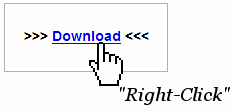
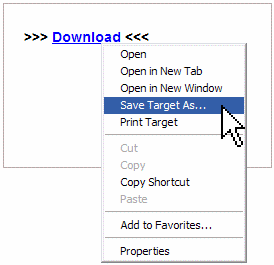
Today I will be sharing with you how to create your own blog. That's right you can publish your own material. How many times have you attended a great training and you wanted to share the handouts or resources from the training with other teachers? Well here is how you can do it. To get started you can download my free training tutorial: How to Create Your Own Blog - Tutorial. Simply click on the blue link above and chose save as. You will want to save it to your desktop. The tutorial will review the following key concepts and ideas:
1. Learn how to create a blog by following the detailed pictures in the tutorial.
2. Learn how to edit, proofread, add links, pictures and videos to your new blog.
3. Learn free tips, hints, tutorials and great resources to use in the classroom.
4. Includes step by step screen shot pictures of how to create a blog.
Hope you enjoy the free resource and keep me posted on how your blog is going. See you next week.
This hand out is being edited, and revised to reflect current changes in blogger and soon will be posted.
readmore »»
Today I will be sharing with you how to create your own blog. That's right you can publish your own material. How many times have you attended a great training and you wanted to share the handouts or resources from the training with other teachers? Well here is how you can do it. To get started you can download my free training tutorial: How to Create Your Own Blog - Tutorial. Simply click on the blue link above and chose save as. You will want to save it to your desktop. The tutorial will review the following key concepts and ideas:
1. Learn how to create a blog by following the detailed pictures in the tutorial.
2. Learn how to edit, proofread, add links, pictures and videos to your new blog.
3. Learn free tips, hints, tutorials and great resources to use in the classroom.
4. Includes step by step screen shot pictures of how to create a blog.
Hope you enjoy the free resource and keep me posted on how your blog is going. See you next week.
This hand out is being edited, and revised to reflect current changes in blogger and soon will be posted.


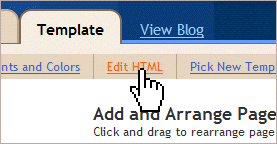
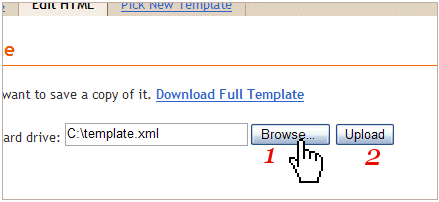
 Make sure you have backed up your template before installing a new one.