Showing posts with label download videos. Show all posts

Sunday, August 1, 2010

How to Get a Free E-mail Account

Greetings,

This week I am blogging about how to get a free e-mail account. There are a lot of teachers and people who do not know that they can get an email account for free. I personally use http://www.mail.yahoo.com/ http://www.gmail.com/ and http://www.hotmail.com/ accounts. The reason you want a free e-mail account is you can send pictures, audios, videos and interesting web sites to all your family and friends. Remember it's all for free. You can also choose your own e-mail screen name.

I like googles email account (Gmail) because you can send an attachment up to 25MB in size. Do you remember about 10 -20 years ago when we use to use save documents on plastic 3.5 inch floppy disks?
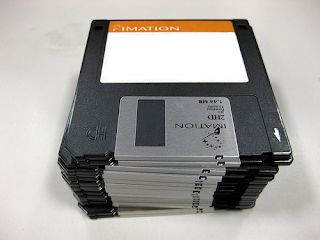
25MB is equal to almost 18 3.5 inch floppy disks. It's amazing how far technology has advanced.
Another reason I like using yahoo.com is because yahoo has an instant messenger (IM). With the instant messenger download application you can chat in real time with family and friends that have the same yahoo instant messenger. You can also use it with your web camera and see the other person in real time while chatting with them. I hear you can use http://www.skype.com/ to do the same thing.

Try these free e-mail accounts and let me know which ones you like best. Next week I will be blogging about how to access free books audio books, music Cd's, DVDs and more. See you next week.
readmore »»  

Sunday, July 25, 2010

How to Search Google?

Greetings,

Hope you are doing well today. I will be blogging about how to do a Google search for documents, pictures, and videos. When you go to http://www.google.com/ you need to type in the search box you topic of interest, and then you type the following file extension in quotes:

1. For MS PowerPoint Documents you type “ppt

2. For MS Word Documents you type “doc”

3. For MS Excel Documents you type “xls

4. For Adobe PDF Documents you type “pdf

5. For Flash Videos you type “swf

6. For a specific phrase you need to type it all in quotes

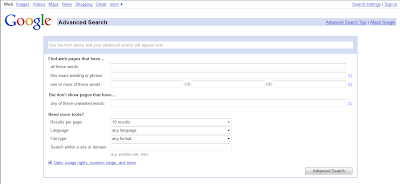
If you want more options, then click on the right side of the box under Advance Search. Next, you will see the following options under Advance Search.


Then you can follow the instructions in the search boxes. If you go to the last topic on Need more tools, you can pull down the drop down arrow boxes to get more options on your search. You can even narrow down the file search to a particular type of file.


For example, let’s say you are looking for an interactive flash web site when teaching a concept or objective; all you have to do is pull down the drop down box and choose Shockwave Flash. Once you chose this option, then all you will find are flash video sites. Try it out with the water cycle. If you want more search options, please visit the following: Advanced Search Tips

To look for pictures you need to go to http://www.google.com/ and hover your mouse on the top left side of the screen, and you will see a blue Images link. Click on the link, and then type the name of picture you are searching for in the search box. You will do the same for Videos. Hope these helpful tips help you out. I will see you next week with another topic.
readmore »»  

Sunday, May 23, 2010

How to Download Videos From YouTube

Greetings,

Hopefully you had a great weekend. Today I will be telling you how to download videos from YouTube. That's right! Have you ever been to a presentation or a conference where they showed a great video to get their point across? Well, here is one way to do it. First of all, you need to download a free media player that recognizes videos playing online. Here it is: http://www.realplayer.com/ Below you will find a picture of what the web site looks like:


When you download the Real Player make sure you save it to your desktop and double click on it and it will begin to install and you will follow the prompts. Once the application is downloaded you can delete the set up files from your desktop.

Now, look closely at the white arrow pointing to the grey rectangle box that says Download This Video When you see this feature click on it, and it will download the video so you can play it on your real player. When you go to YouTube you will see this grey box appear on the top right side. All you have to do is just click on it. Once it is downloaded, you will need to locate it in your Real Player Video Folder on your computer. It's that easy. Now I personally use Windows Media Player to play all my videos, unless it is in a flash format. Then I look for a free flash application to play the video. Once you have downloaded it, you can use the format factory


to convert it into a Windows Media Video ,or an AVI or any different format you want. When you save it, make sure you save it to your desktop, then just double click on the set up files and it will install on your computer. You can delete the set up files once the program is installed on your computer.
Now, you want to find a FLV player and all you have to do is google "free flv player" or you can go here to get one: www.applian.com/flvplayer/ Once again you want to save it to your desktop and double click on it to load the program on your computer. After the program is installed you can always delete the set up files.


Hope this helps you out. Next week I will be sharing free children's web resources to keep your son, or daughter busy learning and growing over the summer. See you next week.
readmore »»